Documentation Index
Fetch the complete documentation index at: https://docs.rockxy.io/llms.txt
Use this file to discover all available pages before exploring further.
Flutter
Flutter setup has two layers: the Flutter HTTP client path and the underlying iOS or Android runtime that actually emits the traffic.Support in Rockxy
- Manual setup available
- No automation entry point today
- Certificate sharing support available
What Rockxy currently provides
- manual setup paths for
Dio, DartHttpClient, andpackage:http - guidance that connects Flutter back to the real device, emulator, or simulator trust path
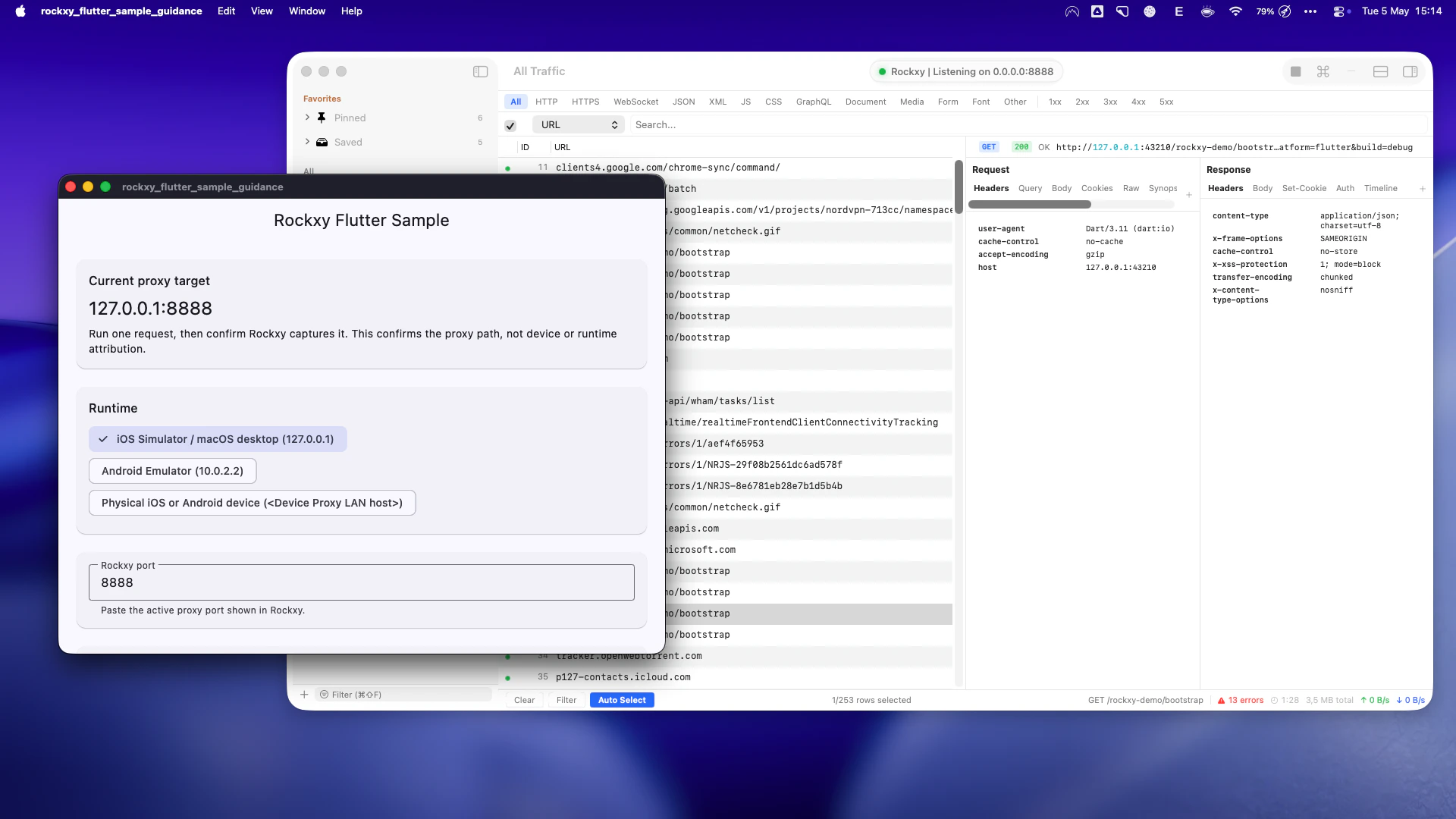
- a local validation probe that confirms Rockxy captured the request shape without claiming device or runtime attribution
What you still need to do
- make the Flutter client proxy-aware
- complete the iOS or Android trust path underneath it
- validate one request before debugging broader app behavior
Step 1: choose the Rockxy proxy host
Start Rockxy, keep capture running, then choose the host that matches where the Flutter app is running:| Runtime | Proxy host |
|---|---|
| iOS Simulator | 127.0.0.1:<Rockxy port> |
| macOS desktop Flutter | 127.0.0.1:<Rockxy port> |
| Android Emulator | 10.0.2.2:<Rockxy port> |
| Physical iPhone, iPad, or Android device | <Device Proxy LAN host>:<Rockxy port> |
Step 2: add a debug-only proxy helper
Create a small helper that your debug build can share acrossHttpClient, package:http, and Dio. Pick the runtime enum value before running the app.
badCertificateCallback in release builds. For Android, also keep user-CA trust inside app/src/debug so release builds do not trust user-installed CAs.
Step 3: use the helper with your Flutter client
Dart HttpClient
package:http
Dio 5
Step 4: complete the platform trust path
iOS Simulator
- Run the app in iOS Simulator.
- Install or share the Rockxy Root CA into the simulator trust path.
- Cold-launch the Flutter app after changing certificate trust.
- Trigger one HTTPS request and confirm it appears in Rockxy.
Physical iOS device
- Set the device Wi-Fi proxy to the Device Proxy LAN host and active Rockxy port.
- Install the Rockxy Root CA profile on the device.
- Trust the certificate in iOS certificate trust settings.
- Cold-launch the app and send one HTTPS request.
Android Emulator
- Use
10.0.2.2:<Rockxy port>in the helper. - Install the Rockxy Root CA as a user CA in the emulator.
- Add debug-only Android user-CA trust if your app targets a recent Android version.
- Cold-launch the app after changing proxy or trust settings.
Physical Android device
- Set the device Wi-Fi proxy to the Device Proxy LAN host and active Rockxy port.
- Install the Rockxy Root CA as a user CA.
- Add debug-only Android user-CA trust in
app/src/debug. - Cold-launch the app and send one HTTPS request.
Validation limits
The Validate tab is a local capture check. It proves that a Flutter-shaped probe reached Rockxy through the proxy, but it does not prove whether the request came from an iOS device, iOS Simulator, Android Emulator, physical Android device, desktop runtime, or a specific Dart isolate. After validation succeeds, keep testing the actual target where the app runs:- use
127.0.0.1for iOS Simulator or desktop Flutter, - use
10.0.2.2for Android Emulator, - use Rockxy’s Device Proxy LAN host for physical devices,
- keep Android user-CA trust limited to debug builds.
Related pages
Frameworks
Return to the frameworks hub.
Device Debugging
Use the device hub when the Flutter app runs on iOS or Android targets.